

Welcome to the BGCO Member Hub
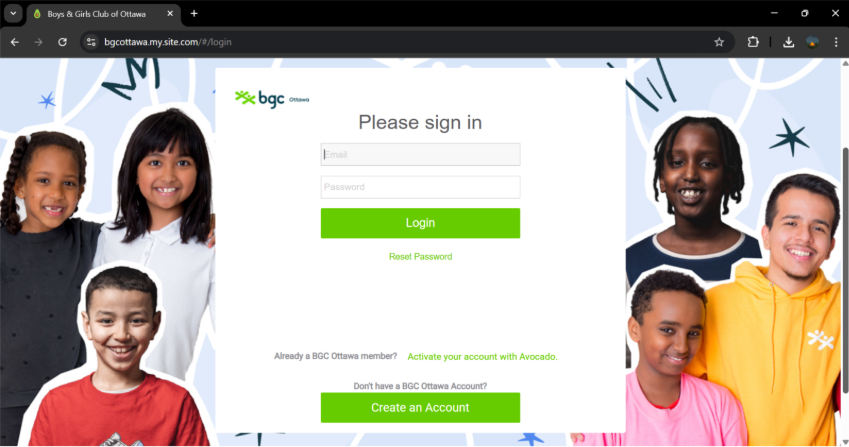
Welcome to the new BGCO Member Hub, powered by Avocado!
This system makes it easier than ever for parents and guardians to stay connected, manage memberships and register their children for Club programs — all in one place.
Through the BGCO Member Hub, families can:
- Stay connected with Club teams through enhanced communication tools and real-time updates.
- Complete membership forms online, including simplified renewal options for returning members.
- View live schedules to see upcoming programs, activities and events as they’re updated.
- Register directly for special programs such as Leaders4Life and Kid Food Nation, with instant confirmation.
The portal is part of BGC Ottawa’s ongoing effort to simplify access and create a more connected Club experience for families.
For the best experience, we recommend using Google Chrome when accessing the portal.

Browser translation support
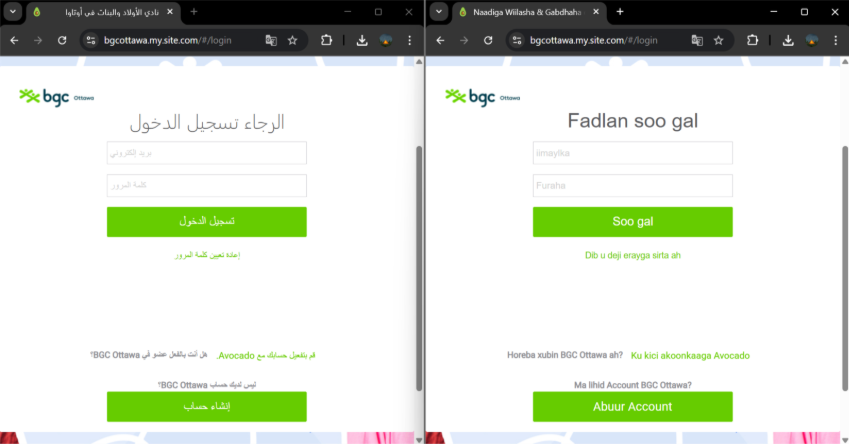
The BGCO Member Hub is supported by browser-based translation features available in Google Chrome. Parents and guardians can use these tools to automatically translate portal pages into their preferred language, including over 100 supported languages.
Use the following links for step-by-step guidance from Google Support:
- iOS (iPhone/iPad): Translate web pages in Chrome on iPhone or iPad
- Android: Translate web pages in Chrome on Android
- Desktop/PC – Chrome: Translate pages and change Chrome languages on desktop
Existing Member access
Existing Members can log in using their membership number on the BGCO Member Hub.
- Go to the BGCO Member Hub.
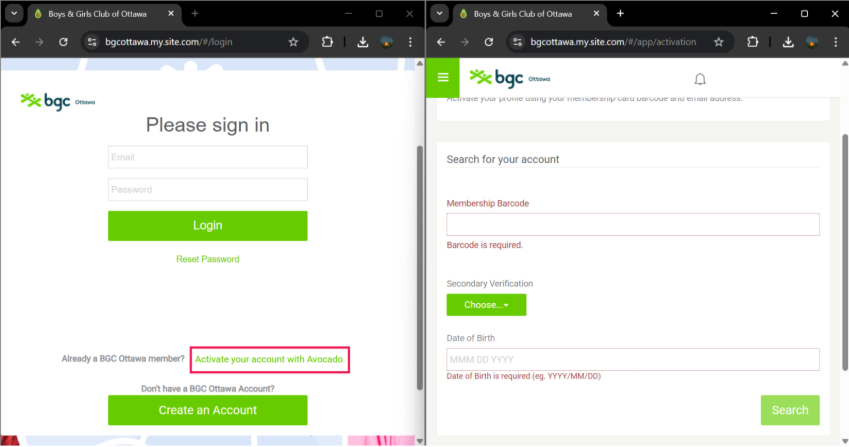
- Click "Activate your account with Avocado".
- Enter the primary account (parent/guardian) holder’s membership barcode received via email or mail.
- Use "Street Address" as your secondary verification method.
- Click "Search".
- Verify your account information and add your email address if one is not listed.
- Click "Activate".
- Check your email for verification link to create your account password.
- Create a password and confirm it.
- Must contain 8 characters, 1 letter and 1 number.
- Go to the BGCO Member Hub and use your email and password to login.
- Review your account to ensure any secondary parent/guardian and Members (children aged 6-18 years old) are listed on your account by selecting "My Profile" → "Assign Membership". All account members will be listed under your "Household".
- Click "Add Additional" and follow section 5 to add people to your household.
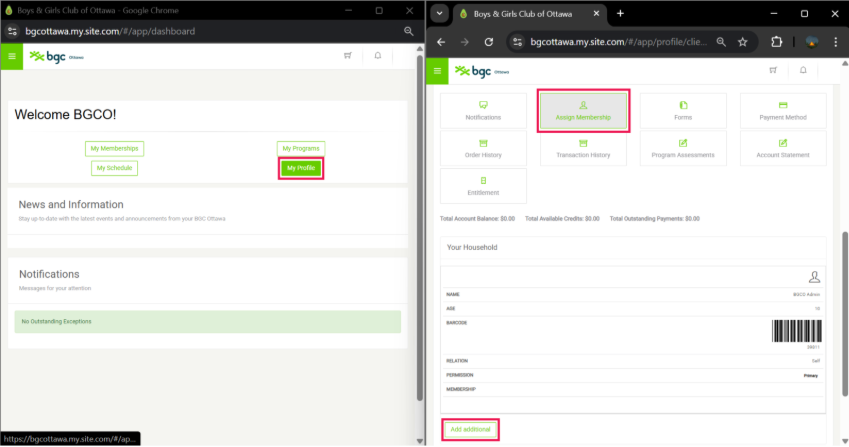
- Skip to section "6. Memberships" if all Members are correctly listed under "Your Household".
Create a new account
New Members must create an Avocado account.
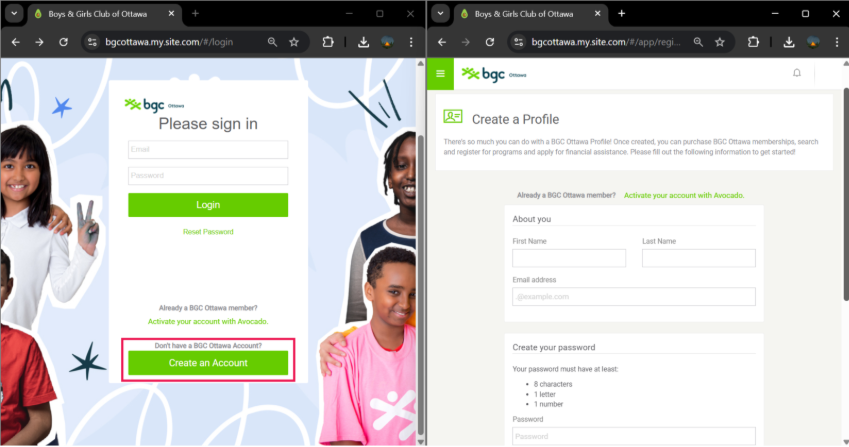
- Click "Create an Account" on the login page.
- Enter the required personal information (name, email, phone) for the primary account (parent/guardian).
- Create a password and confirm it.
- Must contain 8 characters, 1 letter and 1 number.
- Opt-In for email communications regarding events, new programs and other opportunities.
- Click "OK" to create the account.
- Go to the BGCO Member Hub and use your email and password to login.
Adding Members
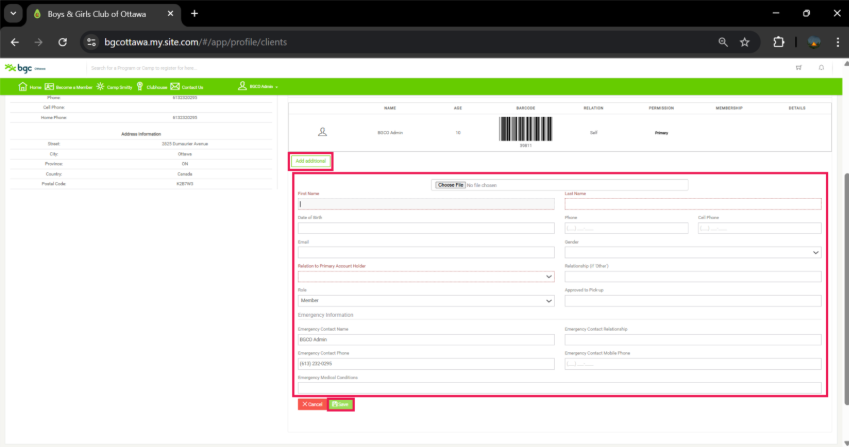
To add family members or dependents:
- Log into the BGCO Member Hub.
- Select "My Profile" → "Assign Membership".
- Click "Add Additional" to add individuals to your household.
- Complete the required fields such as name, date of birth and relationship.
- For role use "Member" for Members and "Manager" for secondary parent/guardians.
- Click "Save" to add them to your account.
Add a photo
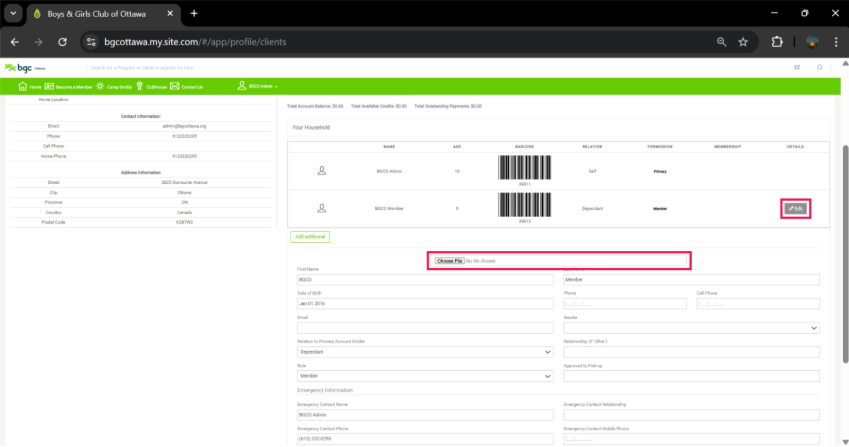
Adding a photo to your account will speed up the process of printing your membership card(s) during your first Clubhouse visit.
You may either:
- Add photos from your phone or computer when creating household member by using the "Choose File"; or
- Select "Edit" and "Chose File" for pre-existing individuals.
_Horizontal.png)


